
How to announce a product update with video

Last updated: October 2026
The fastest way to announce a product update is a 30 to 60 second video that shows the change instead of describing it. In Biteable, start from the Product Explainer template, show the new feature on screen, add captions so it lands on mute, animate the one point that matters, then share the link in your release notes, email, and social. The copy-paste script below gives you the structure.
Key takeaways
- A short video shows what changed in a way a changelog never will, so more people actually get it.
- Captions matter because most feed and email views happen with the sound off.
- One update, one clear point, then reuse the structure for every release.
How long does it take to make a product update video?
About an afternoon, and most of that is capturing the update on screen. Here is the pace.
| Step | What you do | Where in Biteable | Rough time |
|---|---|---|---|
| 1 | Open a walkthrough template | Product Explainer | 2 min |
| 2 | Show the update on screen | Screens or footage | 15 min |
| 3 | Add captions | AI Captions | 5 min |
| 4 | Animate the key point | Animations | 5 min |
| 5 | Apply your branding | Brand kit | 2 min |
| 6 | Share the link | Export and share | 2 min |
If the update is visual, screen footage does most of the work. Keep it to the one thing that changed.
What should a product update video include?
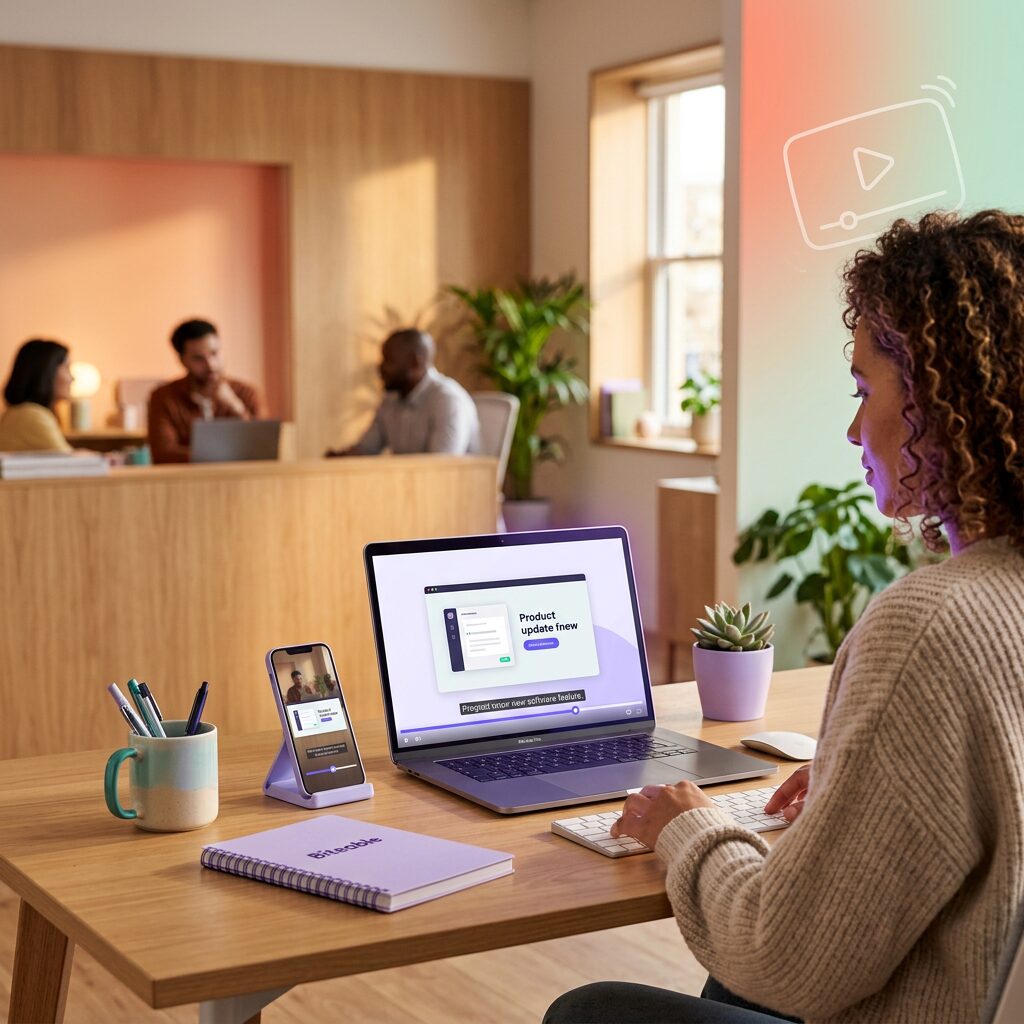
Four beats, and each one earns its place.
The problem it solves, in one line. Start with the friction, not the feature. “Hunting through three menus to export? Not anymore” tells people why to care before you show them what changed.
The change, shown on screen. Do not describe the new button. Click it. A three-second screen capture lands faster than a paragraph and removes any doubt about what you mean.
What it means for them, in plain terms. Translate the feature into the outcome. “Export in one click” is the feature. “Ship your report before the meeting starts” is why they will use it.
Where to go next. One clear instruction: update now, open the app, or follow a link. If people finish the video unsure what to do, the video did not finish its job.
Skip the version number and the internal project name. Customers care what they can now do, not what you called the ticket.
A product update video script you can copy
Drop this into the Product Explainer template and replace the brackets. It runs about 30 seconds. Lead with the problem, show the change, land the benefit.
Scene 1 - The old way
[The friction, one line]. Not anymore.

Scene 2 - The update
Say hello to [feature name].
[One line on what it does.]

Scene 3 - See it work (screen capture)
[Open / click / select] [thing]
[Show the result on screen]

Scene 4 - Why it matters
Now you can [outcome in plain terms], in [less time or fewer steps].

Scene 5 - Try it
[Update now / Open [product] / Try it] at [link].
Add captions over the whole thing, since most people will watch it on mute in a feed or an inbox.
What to show, and what to just say
Show anything visual. The moment the feature does its thing on screen is the most convincing part of the video, so give it the most time. Capture it in one clean screen recording and trim to the key beats.
Say the rest, briefly. The problem and the payoff can be a line of voiceover or on-screen text. You do not need a talking head. You need the viewer to see the change and hear why it matters.
Keep it to one update. A roundup of five changes gets watched by no one. If you shipped a lot, make the big one its own video and list the rest in the notes.
Where do you share it?
Everywhere the update already lives. Embed it at the top of the release notes, drop it in the announcement email, post it to your social feeds, and pin it in your community or support channel. One video, five placements.
Lead with the channel your customers actually check. For most teams that is email and in-app; for others it is a community or a changelog. The Biteable watch-page link tracks views, so after a release or two you will know which placement is worth the effort.
How to make it a repeatable release habit
The first update video is the slow one. After that, you are swapping the feature, the screen capture, and the benefit into a structure that never changes.
Save your finished video as your update template. Every release, duplicate it and fill in the new change. A consistent format also trains your audience: they learn that a 30-second Biteable video means “something new shipped,” and they start to watch for it.
FAQ
How long should it be? 30 to 60 seconds for most updates. A big launch can run to 90 seconds, but shorter almost always wins.
Do I need to record my screen? For a software update, yes, and it is quick. Capture the new feature in one take, then trim.
What if the update is not visual? Lead with the outcome and use animation or simple text scenes to carry the point, then link to the details.
Do I need a voiceover? No. Captions and on-screen text carry most update videos. Add a voiceover if it suits your brand.
Can I use one video for several updates? Better to make one per update. A single clip covering everything gets skipped. A focused 30-second video gets watched.