
Which Free Video Tools Help You Resize and Trim a Video Before You Publish It?

The fastest way to resize or trim a video for free is to use a browser-based tool that does one job well: a resizer to change the aspect ratio for a specific platform, a trimmer to cut the start and end, and a converter to change the file type. You upload the clip, make the edit, and download the result, with nothing to install. Biteable's collection of free video tools covers these common fixes, and so do a handful of others depending on what you need. Below is what each type of tool actually does, when it is enough, and when you are better off building the video properly.
What quick fixes can you make in the browser without installing anything?
Most last-minute video problems come down to three edits. You have a clip that is the wrong shape for where you want to post it, a clip that runs too long, or a file in a format your platform will not accept. Each of these has a free, single-purpose tool.
Resizing changes the aspect ratio. A video shot at 16:9 (landscape) needs to become 9:16 for a Reel or TikTok, or 1:1 for a square feed post. A resizer crops or reframes the video to fit the new dimensions so it does not show black bars or get awkwardly cut off.
Trimming cuts unwanted footage from the beginning or end, or removes a section in the middle. This is the most common fix of all: a few dead seconds at the start, a fumbled ending, or a clip that is thirty seconds too long for a paid placement.
Converting changes the file type, usually to MP4, which almost every platform accepts. If someone sends you a MOV or an AVI and your upload keeps failing, a converter solves it in one step.
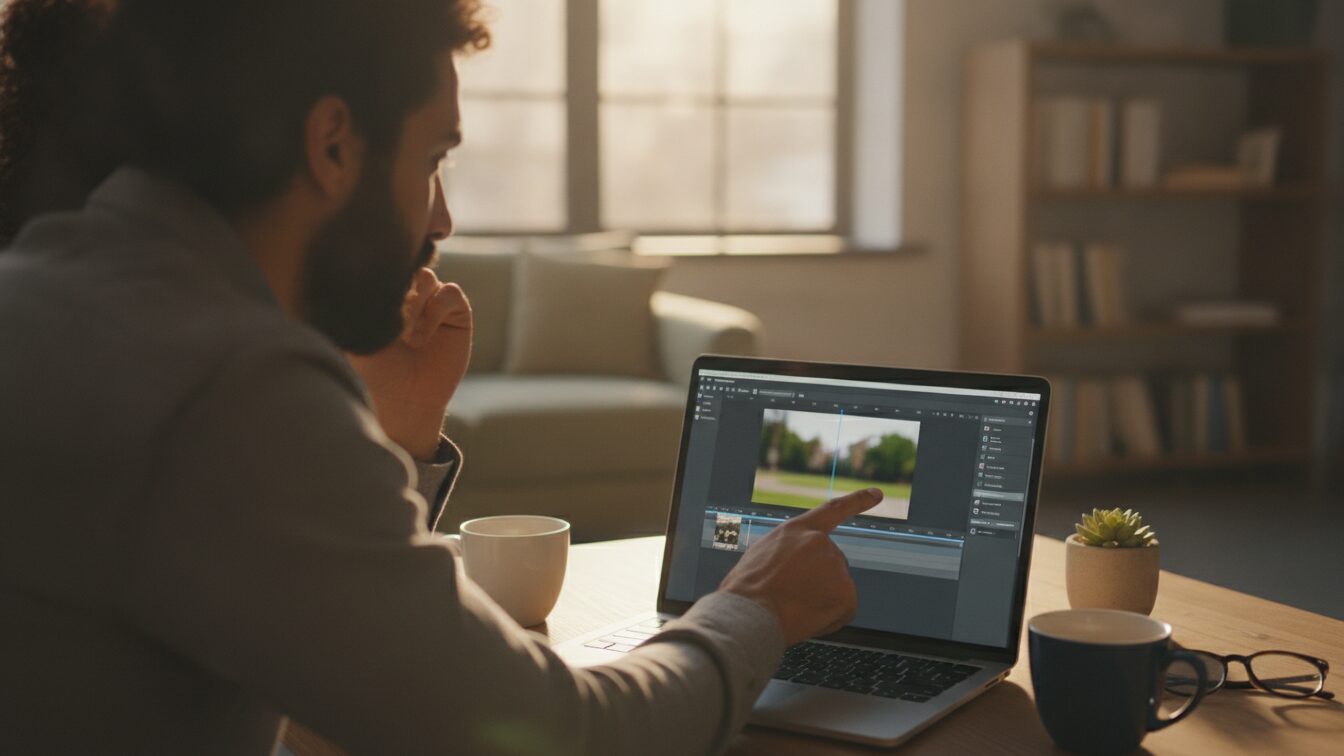
None of these require software on your machine. You do the work in a browser tab, which means it works the same on a Mac, a Windows laptop, or a Chromebook.
Which free tool should you reach for?
The right tool depends on whether you have one small fix or a real editing job. Here is how the common free options compare for the quick stuff.
| Tool | Best for | Runs in browser | Watch out for |
|---|---|---|---|
| Biteable free tools | Resize, trim, convert, then build a full video | Yes | Built for creating videos, not long post-production |
| CapCut | Detailed mobile and desktop editing, effects | Web and app | More features than a quick fix needs |
| Canva | Design-led edits alongside graphics | Yes | Video is one part of a wider design tool |
| A dedicated online converter | Changing file type only | Yes | Upload limits and ads on free tiers |
If you genuinely only need to change a file type once, a plain converter is fine. If you find yourself resizing and trimming the same footage every week for different platforms, it pays to work in a tool that keeps everything in one place. CapCut is strong when you want fine control over cuts, transitions, and effects. Canva suits people who are already designing graphics and want the video to match. For most marketers and internal teams, the value is doing the quick fix and the full build without switching apps.
When should you build the video instead of just editing a clip?
A resizer and a trimmer patch a video you already have. They do not help when the video itself is the problem: no intro, no branding, no captions, no clear structure. If you are staring at raw footage and a deadline, the faster path is often to start from a template and drop your clip into it rather than fight with a single file.
That is where a full online video maker earns its place. You can pick a layout, add your footage, set the aspect ratio once, and let the tool handle the shape. You get scenes, text, music, and stock media in the same place, so the trimmed clip becomes part of a finished video instead of a loose file.
If you want a draft even faster, the AI video assistant can generate a first cut from a text prompt, which gives you a structure to edit rather than a blank timeline. From there you can swap in your own resized clip, adjust the copy, and export.
This matters most for teams that make a lot of short videos. A marketing team producing social and ad content needs the same clip in three shapes for three platforms, and a brand kit keeps the logo, colors, and fonts consistent across all of them. An HR or internal comms team pushing out policy updates or onboarding clips needs a repeatable format more than one-off edits. In both cases, the quick tools handle the emergency fix and the full builder handles the ongoing work.
How do the quick tools and the full builder work together?
Think of the free tools as the on-ramp. You have a clip a colleague filmed, or a snippet from an existing video, and it needs to fit somewhere new. Resize it, trim it, convert it if the format is odd. Now it is usable.
Then bring that clean clip into a project where you add the framing that makes it worth publishing: a title card, captions for people watching on mute, a call to action at the end, and your branding. You can start from a ready-made video template so the structure is already there and you are only filling in your own content. The quick fix gets the raw material ready. The build turns it into something you would put your name on.
Frequently asked questions
Can I resize a video for Instagram and TikTok for free?
Yes. A free browser resizer lets you change a landscape clip to 9:16 vertical for Reels, Stories, and TikTok, or to 1:1 square, without installing anything. You upload the clip, choose the target shape, reframe the subject, and download the new version.
Will free trimming tools reduce my video quality?
Trimming itself just cuts footage and should not lower quality, because you are removing frames rather than re-rendering them. Quality can drop if a free tool heavily compresses the file on export or caps the resolution. Check the download settings, and use a tool that keeps your original resolution where possible.
Do I need to download software to make these edits?
No. Resizing, trimming, and converting all work in a web browser, so they run on any operating system with no install. This is useful when you are on a work laptop where you cannot add software, or switching between a desktop and a Chromebook.
What if my video needs more than a quick trim?
If the clip needs an intro, captions, music, or branding, a single-purpose tool will not get you there. Start the video in a full builder using a template, add your clip, and set the aspect ratio once. You can see the range of creation features and pick the workflow that fits your team.
Last updated: September 2026