
How Does an Education Team Get Students to Make Their Own Video Projects?

To get students making their own video projects, pick a browser-based video tool, build one assignment template with clear slots for students to fill, share it with the class, and set a short review step so you can give feedback before they finish. The whole flow runs in a web browser, so students can work on a school Chromebook, a library computer, or a phone at home without installing anything. Below is the setup in execution order, from the template you start with to the final review.
Why does a browser-based tool fit a classroom better?
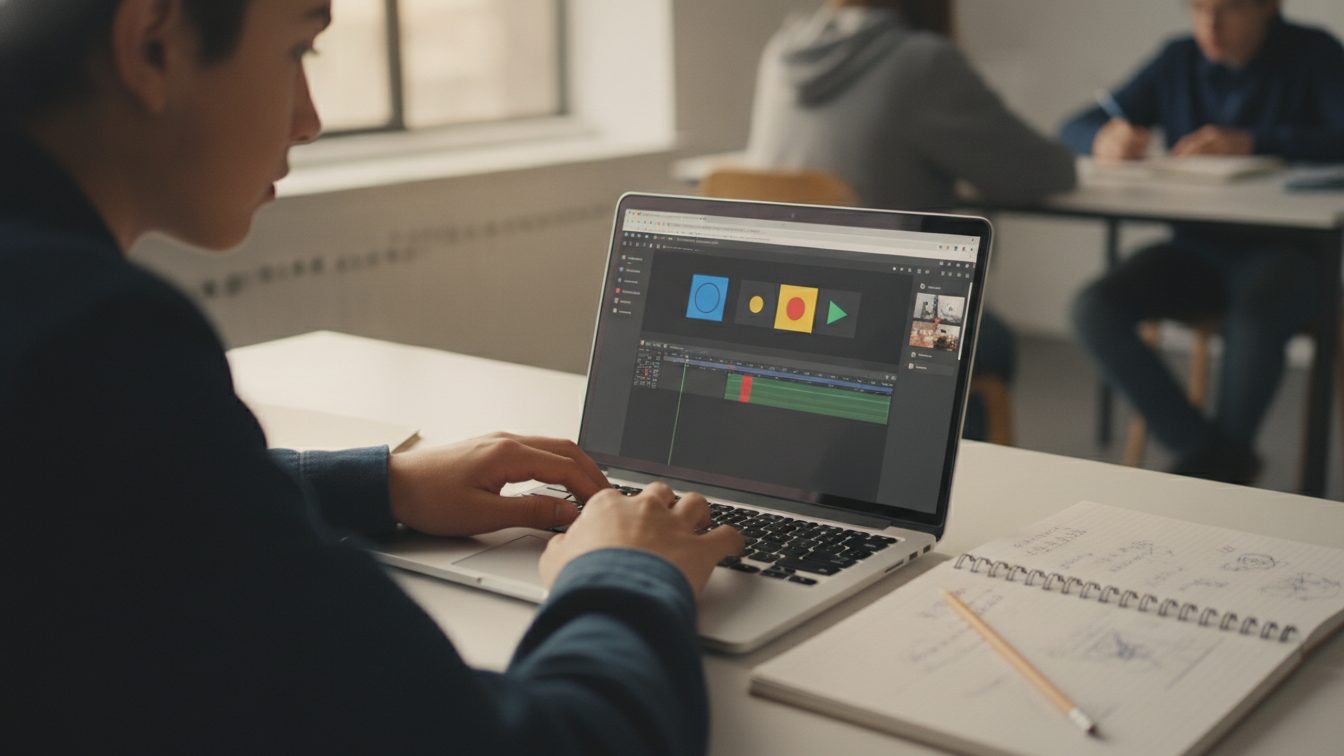
School devices are locked down for a reason. Most students cannot install software, and even if they could, a 2 GB video editor would crawl on a Chromebook. A tool that runs entirely in the browser sidesteps all of that. Students open a link, sign in, and start editing on whatever device is in front of them, Windows, Mac, Chromebook, or tablet.
It also saves you from being tech support. There is no version to update, no download that triggers an IT ticket, and no "it works on my computer but not the lab machine" problem. Biteable for education teams is built around this: templates to start from, a shared workspace, and review in one place, all through a browser. Everything here applies whether you use Biteable or another web tool, but the shared template and review features matter most when thirty students are working at once.
What should you set up before you hand the project to students?
Do the setup yourself first. Walking into a lesson with a blank tool and thirty confused students is how a video project dies. Prepare these four things in advance.
- Pick one template per assignment. Browse the library of video templates and choose a structure that matches the task: an explainer layout for a science concept, a short promo style for a book review, a timeline layout for a history project. A template gives students a finished-looking starting point instead of an empty timeline, which is where most beginners freeze.
- Trim the template to the scenes you want. Delete anything off-topic and leave three to six scenes. Add placeholder text like "Your name and topic here" or "Explain the cause in one sentence." Students fill the gaps rather than inventing structure from scratch.
- Write the brief into the project. Use the first scene or a shared note to state the goal, the length (30 to 90 seconds works well for a first project), and what you will grade. Clear limits reduce the "how long does it have to be" questions.
- Decide how students get the file. Either share a single master template they each copy, or create a copy per student or group. Copying per student keeps work separate; a shared template works for group projects where several students build one video together.
What are the exact steps students follow to build a video?
Give students this sequence. It keeps a class of mixed ability moving at roughly the same pace.
- Open the shared link and make a copy. Each student or group starts from your prepared template so nobody stares at a blank screen.
- Replace the placeholder text. Scene by scene, swap your prompts for their own words. This is the real work of the assignment, so give it the most time.
- Add visuals from the built-in library. Students pull from stock footage, images, and animations inside the tool instead of hunting the open web for clips they cannot legally use. For students who want a faster first pass, an AI video assistant can turn a short text prompt into a draft they then edit, which helps anyone who struggles to get started.
- Add music and timing. Pick a track from the library and adjust how long each scene stays on screen so the narration or captions can be read.
- Preview and fix. Students watch the whole thing once, catch typos and awkward timing, and fix them before submitting.
- Submit for review. Rather than exporting and emailing a large file, students share the project link with you inside the tool.
Set a soft checkpoint halfway through the lesson: everyone should have text in every scene before they touch visuals. It stops students spending the whole period choosing a background clip.
How do you review and give feedback without collecting thirty files?
Keep the review inside the tool. When students share a project link, you can open it, leave comments tied to specific scenes, and send it back for one revision. That beats downloading thirty video files, playing each one, and typing feedback in a separate document. A shared workspace with collaborative feedback means the comment sits next to the exact scene that needs work, so a student knows precisely what to change.
For group projects, the shared template lets several students build and comment on the same video, which also gives you a record of who contributed. Run one feedback round, then a final version. More than that eats class time without improving the work much.
How do different tools compare for a student video assignment?
There is no single right tool. Here is an honest comparison of common browser-friendly options and who each suits.
| Tool | Runs in a browser | Best for | Watch out for |
|---|---|---|---|
| Biteable | Yes, no install | Template-led projects with shared review | Built for creating, not long-form editing or hosting |
| Canva | Yes | Design-heavy slides and simple video | Timeline editing is lighter than a dedicated video tool |
| CapCut | App and web | Hands-on clip editing and effects | Steeper for beginners; more manual setup per student |
| Loom | Yes | Screen and webcam recordings | Records rather than builds scene-based videos |
If the goal is quick screen recordings of students explaining their work, Loom fits. If you want polished, scene-based videos from a common starting point with review built in, a template tool like Biteable is the closer match. You can compare what each option costs on the Biteable pricing page before committing a class to one.
Frequently asked questions
Can students make videos on a school Chromebook?
Yes. A browser-based tool needs only a web browser and an internet connection, so Chromebooks, school desktops, and tablets all work. There is nothing to install and no admin permission required.
How long should a first student video project be?
Aim for 30 to 90 seconds. Short videos force students to pick their strongest points and finish in a single lesson. You can extend the length for later projects once they know the tool.
Do students need their own accounts?
It depends on how you share. For group work, students can collaborate on one shared project. For individual grading, giving each student a copy keeps their work separate. Check your tool's workspace options and your school's privacy rules before signing students up.
What if a student has no idea where to start?
Point them at the prepared template so the structure is already there, and let them use an AI draft from a short prompt as a first pass. Starting from something they can edit removes the blank-screen block that stops hesitant students.
Can I reuse the same assignment next term?
Yes. Save your trimmed template with its placeholders and brief, then copy it for the next class. One afternoon of setup becomes a reusable assignment you tweak rather than rebuild.
Last updated: October 2026